What software features do you need?
How do you decide which level of software to purchase to prevent limiting the growth of your sign shop?
Find the answers to those questions and more in this article.
You can also watch this detailed video on all the new features of LXi 22 and how the new features will give you more options for custom graphics.

Why Sign Makers Need Software Guidance
When you buy a sign equipment package, you’ll probably spend most of your time looking at the hardware features and specifications to make sure you get the right Vinyl Cutter or Printer for the job. The more capable your equipment, the more productive your sign business is.
What about software? Many aspiring sign makers spend a lot of time selecting the right cutter, but then buy the least expensive software available. It is only after they’ve set up the equipment do they realize that they don’t have the design tools they need to meet the demands of waiting customers. How can you avoid this common pitfall?
Why Vinyl Express® LXi Vinyl Cutting Software?

FIG 1: LXI includes tools for optimizing the performance of your vinyl cutter
The first question to answer is the most obvious: Why buy LXi?
Many people use other applications, such as CorelDRAW or Adobe Illustrator, for vector graphics. Others prefer photo editing software like Adobe Photoshop, Corel Photo-Paint or even PaintShop Pro. Why not just use one of those?
Using Photoshop for vinyl graphics is like trying to change a flat tire with a hammer and chisel. They’re just not the right tools for the job. You might get the tire changed, but not without serious aggravation and possible injury.
These software applications are not designed for making vinyl signs, so a lot of their output can’t be used by vinyl cutters. More importantly, they don’t have plotter drivers, so they cannot communicate directly with your device in its native language.
You could use a generic printer driver, but then you’ll still lack the unique features included in LXi that have been developed over 35 years of sign making to make your life easier. These features include: enhanced weeding tools, automatic tiling, and the cutting speed and force controls that are essential for driving some entry-level cutters (Fig 1).
We understand the resistance to buying and learning graphic design software if you’re already proficient in another application. Since LXi is cloud-based software, you also have a 'Cloud pane' that enables archiving your files online and provides instant access to an extensive library of clip art images, logos, and templates. You need not be online all the time to use it. You do need an internet connection for installation and occasional server contact to keep up the license.
Few people want to expend the time and effort to learn new software. But it’s time well spent and the effort will pay off in increased efficiency and productivity. Speaking of learning, we've made it easier by posting some LXI Training Video Tutorials on our support site. So what does LXi software offer and why is it worth your hard-earned shekels?
New Features in LXI 22
Reorder Installed Devices
In Production Manager, you can arrange your installed printers and cutters in any order you like. Just Click View/Reorder Devices and move them up and down in the list.
Windows 8.5 & 10 Flexibility

Windows 11 is great, but it’s not for everyone. What if you’re still running 8.5 or 10? What if you need to run in 32-bit mode to maintain connection to older hardware?
Not a problem. LXI 22 has a 32-bit Preferences option that allows you to run Production Manager in 32-bit so that you can connect reliably to your trusty older devices.
Dynamic Marquee for Make Transparent Tool

Change selection preview marquee dynamically when the tolerance setting in Design Central is adjusted.
Make background selection and deletion choices on the fly with one click.
LXi RIP New Features
There are over a dozen new time-saving features in LXI RIP! Here are the top 10:
- Make Background Transparent
- Cut Tab Contour-Cut Tools
- Cut Page Crossing
- Remove Image Data for DTF transfers
- Remove Image Data: Channels Preview
- Order Reprints
- Choke only RIP-generated White layer
- Simpler ICC Profile Addition
- Adding jobs to Nested Groups
- After Receive, RIP Only
Other New Features
There’s much more to the advances in LXI RIP 22. Other smart new features include…
- Tiles Count in Job Info: The number of tiles are now displayed in the Job Info pane.
- Transparency Tab in Production Manager. Add DTF transparencies right in Production manager
- Remove image data to soften heat-applied DTF and laser transfers using the new Transparency Tab
- An array of white layer options for DTF, DTG, and laser transfer image management.
- Thumbnails in Production Manager queue. Quickly find and select jobs using the new thumbnail images
- Print Labels Position option allows you to add printed labels on any side: top, bottom, left or right
Vinyl Express® LXi Vinyl Cutting Software Overview
Five levels - with OS Updates
LXi 22 is fully compatible with Windows 7, 8, 10, and 11.and is a Windows-only application.
MAC users can purchase Create Space, which is a cross-platform application primarily designed for the craft, hobby, and vinyl graphic markets.
There are five levels of LXi 22 offering different tools and features. In order from basic to best, these are Apprentice, Expert, Master, Master Plus, and RIP Design. Time and space fails to allow a full exploration of all the features in all the levels of LXi. Instead, we’ll look at new features in LXI 22 and the most important features by level so you can see what gets added to your digital toolbox as you move up the LXi ladder.
Vinyl Express® LXi Apprentice
LXi Apprentice is an entry-level solution and is offered for those who are already proficient in another graphic design software product like CorelDRAW or Adobe Illustrator, and wish to continue designing in that space. You can even use the Workspace Profiles option to change the Graphic User Interface to look like your favorite graphic design software. The tool set is fairly simple and supports unadorned text and shapes. But it comes powerful sign production tools and essential interactive design features that make LXi 22 easy to learn. Because of the simple tool set, it’s not recommended as a standalone design platform.
Here are some of the main features.

FIG 2: Auto tracing is essential for turning jpeg files into cuttable decals
Design Central is an interactive, context sensitive tool window that displays various tools according the objects you have selected on your workspace. This feature makes it easy to work quickly because it eliminates the need to search for the right tool as you move from one task to another. Design Central greatly reduces the learning curve and speeds productivity.
Production Manager is a separate application launched by the File/Cut-Plot command. It includes a plotter driver library supporting hundreds of vinyl cutter models, including Vinyl EXPRESS, MUSE, Graphtec, Roland DG, Mutoh, Mimaki, Summa, and others.
Production Manager helps manage the entire cutting process, from selecting devices, editing image attributes to fine tuning the cutter’s performance. The Production Manager consists of two modules, the Device Manager, and the Cut/Plot window. As its name implies, the Device Manager is where you’ll find tools for managing your cutting devices. From here you can add, remove, activate or deactivate plotters, test connectivity, change ports, send test cuts and more.
The Cut/Plot window divides into four tabs that house tools for managing the image and the cutter performance. The first two tabs support image editing including rotating, resizing, repositioning, inverting, or duplicating images, cutting by color, and tiling, and more.
The Options and Advanced tabs house tools for fine tuning the cutter’s performance. Here you can manage speed, force, and offset settings, add cut paths to speed and facilitate weeding the cut graphic, add registration marks, manage over-cut, trapping, and welding, and more.
Even if you’re designing in a third-party application, you should learn and use Production Manager to output your jobs. Decades of experience in sign businesses all over the world result in a staggering array of tools in the LXI Production Manager.
Vinyl Express® LXi EXPERT
LXi Expert is the first step up from Apprentice and is a standalone program for production of basic to intermediate vinyl graphics. To the considerable production features of Apprentice, LXI Expert adds important design features such as inlines & outlines, and auto tracing.
The Inline/Outline/Contour feature is one of the most commonly used tools in the effects menu. You use Inlines and outlines to build two color graphics with an outline in a different color from main text element. This time-honored design feature is commonly found in brand logos and is a great way to distinguish the primary element in a design by giving it more visual weight.
Scanning & Auto tracing is another pair of essential sign making tools. Scanning and auto tracing are the first and second steps in conversion of a printed bitmap image to a cuttable vector graphic (Fig 2). You’ll need this the first time a client contracts you to cut a design using images they only have in printed form. This happens a lot. You’ll need to scan the image, then use the auto trace tool to convert the scanned image to a cuttable vector object. You will also need to use the auto trace tool anytime you receive a digital image file that’s in a raster format. The most common of these is the ubiquitous jpeg. Web images like gifs, jpegs cannot be cut until they’re converted to vector form with the auto trace or vectorization tool. Click here to learn more about vectorization.
Vinyl Express® LXI Master
LXI Master adds more popular commercial sign design essentials including drop shadows, distortions, and weld tools.
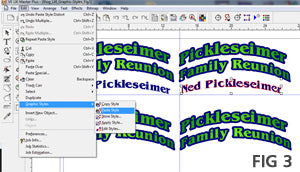
FIG 3: Graphic Styles make your design time more efficient.
Drop shadows are another staple of graphic design. LXi Master has four versions of shadow effects including drop, block, cast, and perspective; think of the Superman logo. The new soft shadows option supports a more contemporary look ideal for printed graphics.
Distortions and are great for adding contrast to your layouts. This effect allows you to warp a shape or word to imitate the effect of a three-dimensional substrate. Give your text the look of a waving flag, banner, cylinder, foreshortened wall, or almost any other shape. There are 23 presets and each can be edited using the node and path tools. The only limit is your imagination.
The Contour Cut Mark feature supports print and cut workflow with desktop printers. This process requires a vinyl cutter with a registration mark sensor (i.e. MUSE, Vinyl Express Rogue, Qe6000, Graphtec CE Series, Roland GX24, GS24 et al) and a printer with drivers installed in Windows printer folder. If you want to print and cut small scale decals with your desktop inkjet printer, this feature is for you. It’s ideal for creating full color, heat applied t-shirt graphics for colored and dark garments.
Weld tools make creating unique shapes more quickly by combining, intersecting, overlapping multiple objects. The Weld tool bar has eight options including weld, fuse, common, exclude common, and more. This is a great way to create reverse weeded text that adds contrast and makes weeding faster.
Graphic Styles allows you to quickly copy attributes from one object to another or to setup default values for all graphic elements. It's a powerful tool that enhances efficiency and supports consistent design (FIG 3). For more about how to use Graphic Styles in LXI software, please click here.
Gradient Fills are one of the most commonly used graphic design elements of our time. They're found in everything from top tier brand logos to T-shirt decal designs. Gradient fills are a great way to add energy, depth and engaging color to your signs and graphics. The gradient fill option includes popular presets like rainbow fills and chrome effects and allows you to customize any gradient fill by adding or removing hues and precisely editing the angle of the gradation. In addition to gradients, LXI Master supports transparent overlays with 17 blending modes. You can layer solid and gradient fills and use the transparent fill function to create an whole new range of visual effects . Since gradients can't be output in vinyl, this feature is more applicable when designing printed designs like T-shirt transfers.
New features in LXI Master 22 include cut settings by layers, cut settings by passes, inter-leave nesting, vector eraser, cleave by path, Cut settings by layer, enhanced smart nesting, and rectangle to contour cut marks.
Vinyl Express® LXi Master Plus:
The Professional’s Choice
LXi Master Plus has all these nifty features and more. Among the unique features in the top-level of LXi cutting software, you’ll find expanded shape tools, pattern fills, color bitmap editing tools, the Rhinestone Wizard and job info and statistics.

Having expanded shape tools seems unimportant until you have to create a perfectly symmetrical arrowhead. To save time finessing the path edit tools to achieve symmetry, the Master Plus shape toolbox adds fans, arrows, and parametric shapes to the standard rectangles and ellipses. These shape tools can save you design time, and as we all know, time is money.
Speaking of time and money, the Job info/Job Statistics feature is one of the most practical elements in Master Plus. Job Statistics keeps track of exactly how much time you’ve spent working on a specific job. This supports billing for design time and helps manage efficiency. Job Info adds fields for recording Purchase order numbers, customer contact information, internal sales date, order and delivery dates and more. Together, Job Info and Job Statistics are good basic business management tools.
Color Bitmap editing is a great tool set for desktop print and cut workflow. Suppose someone wants to you print a decal of their grandbaby on a shirt, but they want only the child’s face without the surrounding background? How do you delete the background from the supplied image? You use the bitmap editing tools. The crop tool allows you to select only a rectangular portion of an imported bitmap. The magic wand and associated make background transparent function make those unwanted pixels go poof. Then you can create the contour cut path around Junior’s adorable face and create a high quality, high profit, custom decorated garment. In addition to the gradient fills in LXi Master, Master Plus adds pattern fills to give you another layer of design options. There are eight preset pattern fills including brick, diamond plate, and polka dot.
New features in LXI Master Plus 22 include cut settings by layers, cut settings by passes, inter-leave nesting, vector eraser, cleave by path, cut settings by layer, enhanced smart nesting, rectangle to contour cut marks, page contour-cut marks, and trim marks.LXi RIP Design:
The Large Format Print & Cut Solution
LXI RIP Design takes your sign shop to the next level by enabling you to use all of the design tools of Master Plus to create large format prints with the PrismJET VJ24 and VJ54. The LXI RIP and Print engine supports professional quality color management, job control. It includes ICC Profiles and supports the creation of custom profiles for your media.
Here's a brief feature summary.

Master Plus Design Tools. LXI RIP Design comes with two powerful components; the LXI Design Editor and the RIP Design Production Manager. The Design Editor includes all of the powerful design tools found in LXI Master Plus. So you can create vibrant, colorful graphics in the Design interface and output them through the RIP engine, or import them into Production Manager.
Color Management: LXI RIP Design includes all the essential color management tools needed. You can import presets, load ICC Profiles and even create your own using the Color Profiler. You'll find full support for fine tuning the amazing wave print modes for your PrismJET printers. All of these tools mean you can produce top quality prints for less.
Print and Contour-Cut Job Control: LXI RIP Design is designed for large format printing and contour-cutting. The Production Manager supports seamless print and contour-cut workflow so that jobs can be printed on your PrismJET printer and contour-cut on any capable vinyl cutter. The smart print and cut job control supports excellent path alignment and simultaneous printing and contour-cutting for maximum productivity. LXI RIP Design has no file-cut-plot function. So, for full printing, contour-cutting, and vinyl cutting, you'll need to pair RIP Design with Master Plus.
True-Shape Contour-Cut Nesting: a new True-Shape Contour-Cut Nesting tool is included. This intelligent feature allows you to arrange copies of a contour-cut decal in the Design Editor to minimize media usage and therefore, maximize profit.
New features in LXI Master Plus 22 include cut settings by layers, cut settings by passes, inter-leave nesting, vector eraser, cleave by path, cut settings by layer, enhanced smart nesting, rectangle to contour cut marks, page contour-cut marks, trim marks, copy counter, RIP & print ruler, profile analyzer, profiling wizard, and RIP & print smart nesting.As noted above, time and space here doesn't allow a full exploration of all the intelligent design and production features baked into LXI 22. For a complete list of the features by level.
You certainly won’t need all of these tools for every job. But when you need them, it’s better to have them readily at hand than to resort to delivering bland, uninspiring work to your customers. So don’t spend all your time shopping for a great cutter and then scrimp on software. A vinyl cutter’s output is only as good as the designs sent from the software. Your design work will be more effective and more efficient if you invest as much time and thought choosing software as you do choosing hardware.
If you want smoother performance, need the latest device drivers, or want to enjoy the productivity gains of the exciting new features, LXi22 is for you. The current release is LXi 26, available in our LXi Software collection.